Today, we're introducing a new feature for public/private school teachers who have multiple copies of CompuScholar courses hosted in our system. While you've always been able to add or customize a quiz or test, you'd previously have to repeat that customization in each copy of the course. So, if you were teaching several sections, the process was pretty laborious. No more!
This information does not apply to teachers hosting our materials in Canvas, Schoology, or a similar LMS. You can already use your LMS to add, modify, or copy quizzes and tests using the features available in your system - no need for any help from CompuScholar.
This information does not apply to homeschool or individual families - those clients do not have editing rights on courses in our system.
The 2026 Approach - Copy and Paste
 You can now copy a current assessment and paste it anywhere in the same or a different course. The pattern for customizing assessments in the same way across multiple courses is now very efficient:
- Create the new quiz or test (if not modifying an existing assessment).
- Add or modify questions as desired (this takes time).
- "Copy" the completed assessment in the original course.
- "Paste" the completed assessment into another course.
- Repeat the copy/paste as often as needed across many sections.
With this approach, the most time-intensive part of the process - customizing the questions and answers - now only needs to be done one time. Then, simply clone the new assessment to a new location in any course. Easy!
Detailed Copy and Paste Steps
After you have completed a customized assessment that you'd like to clone, take the following steps to copy and paste that assessment elsewhere.
- Make sure "Edit Mode" is turned on with the slider in the top-right corner.
- Click the drop-down menu (3 dots) to the right of your original, customized quiz or test.
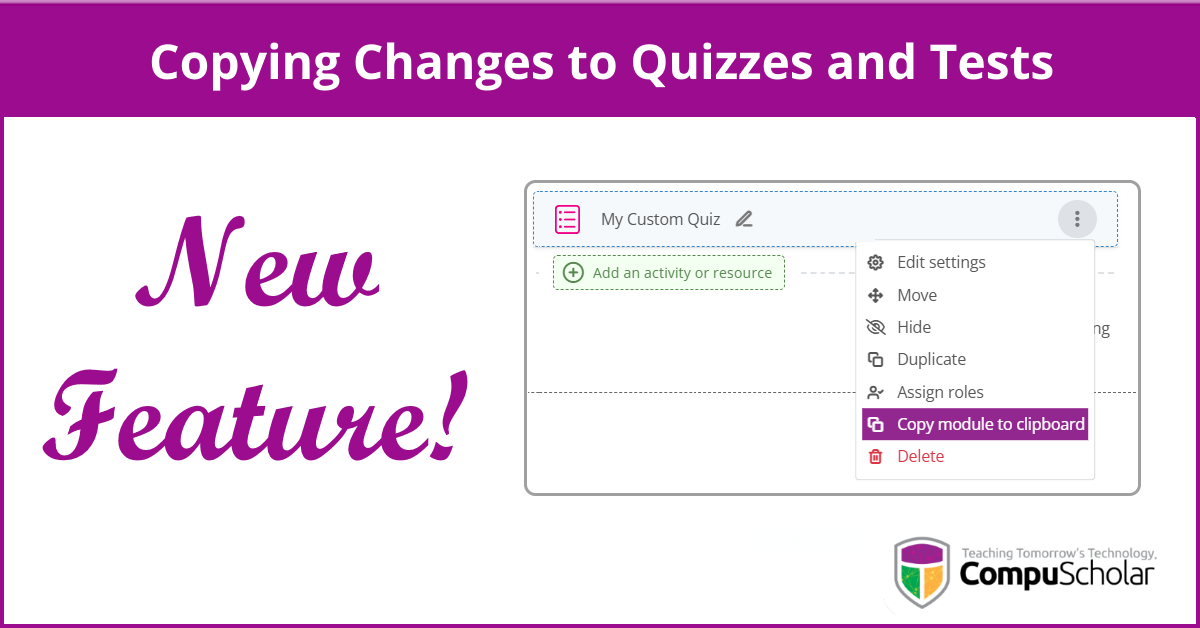
- Select the "Copy module to clipboard" option (see top image).
- Navigate to the other course and go into the chapter where you'd like to place the copy.
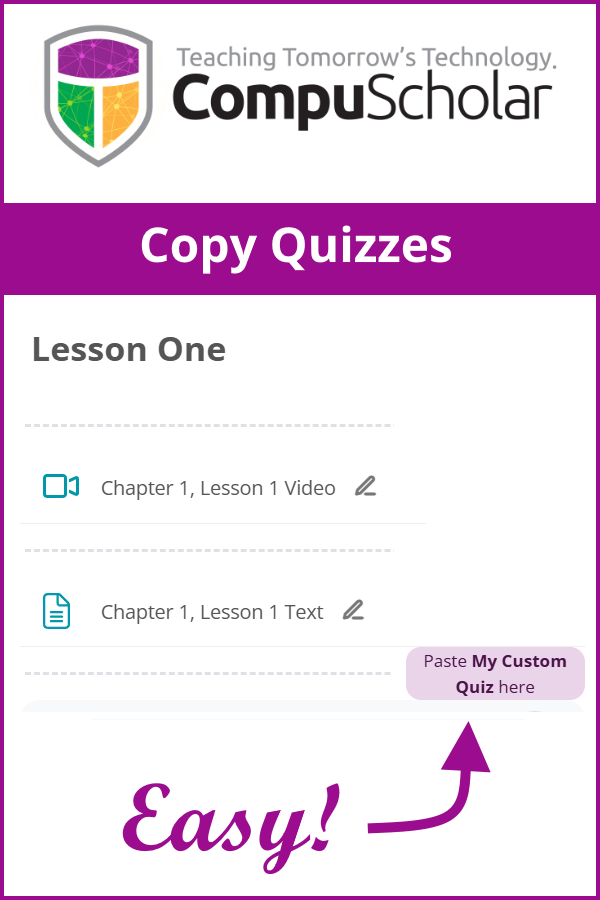
- Click the "Paste
here " option wherever you'd like the assessment to go (see image to the right).
Almost done! As the last step, you'll need to ensure the new copy of the quiz or test is placed into the correct grading category in the target course.
- In the target course, make sure "Edit Mode" is turned on with the slider in the top-right corner.
- Click the drop-down menu (3 dots) to the right of the new copy of the quiz or test.
- Select the "Edit settings" option.
- Expand the "Grade" area.
- Select "Quizzes" or "Exams" from the "Grade category" drop-down.
- Click one of the "Save" buttons at the bottom.
That's it! While there are a few details to remember, the steps are very quick. Just refer back to these instructions or our video PD sessions if you need a reminder.
For More Information
Check out our February 2026 Professional Development Webinar - "Copying Changes to Quizzes and Tests" - for further discussion and a video walk-through of the new feature. As always, please Contact Us if you have questions!