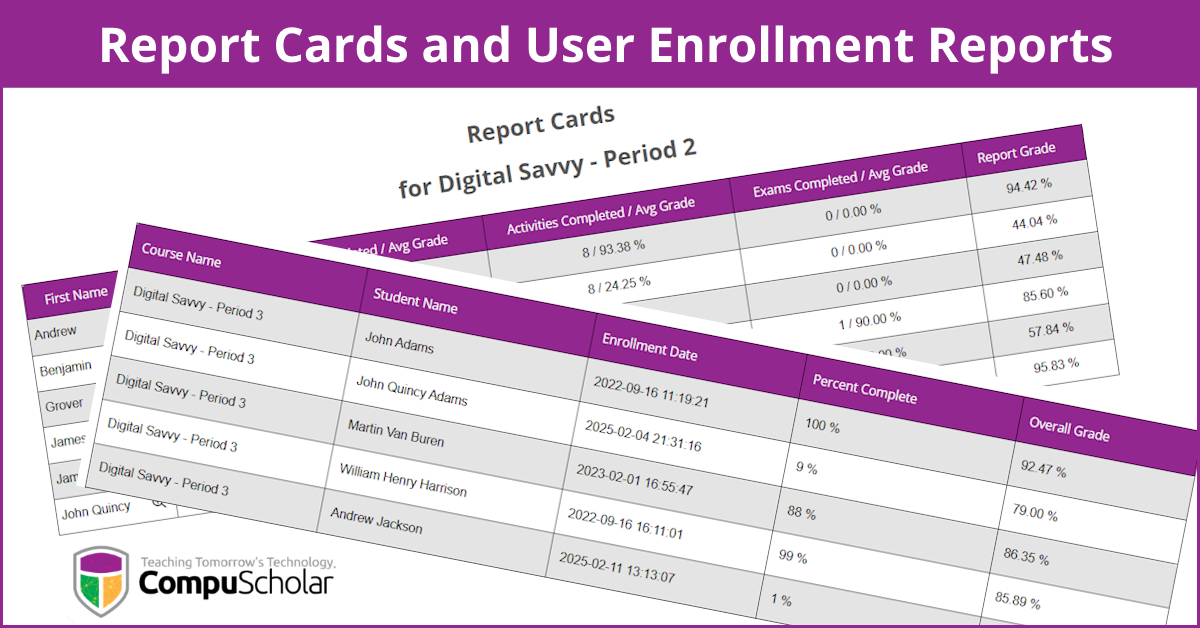
By teacher request, we have added new reports to our Report Dashboard. Teachers can now generate consolidated User Enrollment Reports and Report Cards over a defined range of graded items. Read on to learn more about these new reports!
REMINDER - EXPLORING THE REPORT DASHBOARD
Teachers access the Report Dashboard by going into a course and clicking on the "Report Dashboard" link on their Teacher Menu near the left side of the course description page. CompuScholar's reports are only available for courses hosted in our system. If you are using Canvas, Schoology, Buzz, or a similar LMS, then your LMS likely has comparable reports.
For an overview of all available CompuScholar reports, please check out our October 2025 webinar, "Exploring the Report Dashboard".
USER ENROLLMENT REPORT
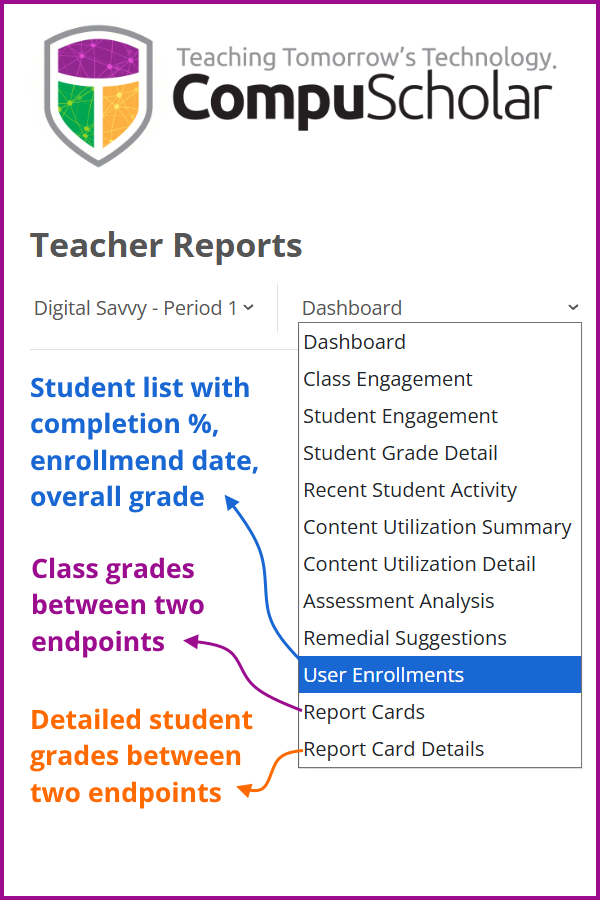 Do you have an administrative need to summarize all students in one class - or all students in all classes that you teach? The new "User Enrollment Report" may be just the answer! This handy report lists all students with the following information:
- Course Name
- Student Name
- Enrollment Date
- Percent Complete
- Overall Grade
Like all reports, you can sort the results by clicking on the headers of most columns. You can also export the report to PDF, XLSX, or CSV files for your permanent records.
REPORT CARD REPORT
The online grade book shows all gradable items, either by category (Quizzes, Exams, Activities...) in the Grader Report or by order in the Sequential Report. The new "Report Card Report" allows you to define a subset of those items to produce student grades just for one reporting period.
Your school likely defines a reporting period by dates (e.g. 1st quarter is from Date X to Date Y). Even though student submissions are timestamped in the CompuScholar grade book, it's not easy to associate many individual quizzes, tests, and activities to a specific date range. We also can't rely on the student's submission date - what if students turn in work before or after your desired reporting period?
Because you will move sequentially through most of our courses, we felt the best way to let you define a reporting period is to select the first graded item (e.g. "Chapter 1, Lesson 1 Quiz") and the last graded item (e.g. "Chapter 10 Exam") that you wanted students to submit for that reporting period. That way, report cards are generated on a consistent set of items, regardless of if or when students actually turn in work.
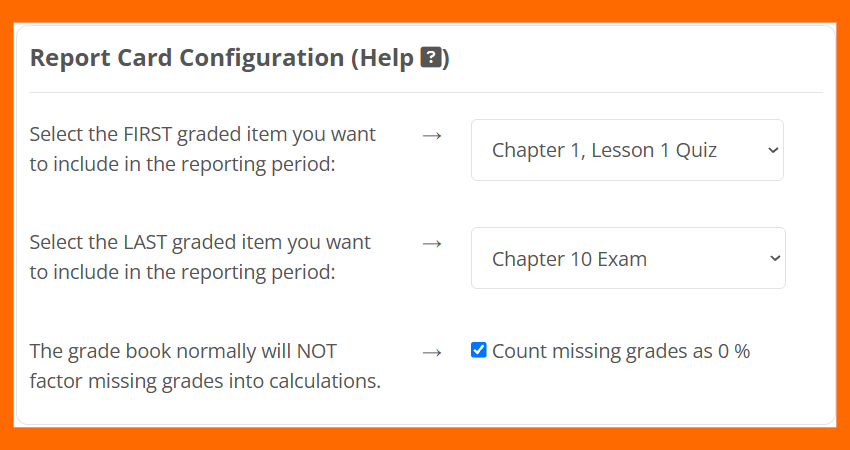
The grade book will normally ignore missing assignments when calculating grades. If a student does not have a grade for a quiz, test, or activity, then that item is not considered at all for grading purposes. That way, you don't have very low scores early in the course while students have not yet reached most of the assignments. However, for a Report Card, you likely want to penalize students who have not turned in required work during your selected reporting period. Therefore, you have a checkbox option to count all missing grades as 0% for report card purposes.
But what if....
- ...I want to do things out of sequence? If you have editing rights on your course, you can turn on the "Edit Mode" slider near the top-right corner. Then, rearrange the course so the elements appear in sequence the way you plan for students to progress through the course. You can then run the Report Card reports and select first/last items in your sequence, not the default sequence.
- ...I want to exclude a specific category that I've directed my students to skip (e.g. "Exams")? If you have editing rights on your course, click on "Configure Course" from your Teacher Menu, then adjust the weights for that category to 0%, redistributing those points to other categories.
- ...I need to make exceptions for specific cases or students? You can always export the Report Card results (or detailed results - see below) to a spreadsheet for additional manipulation. The grade book and online reports are just tools to help teachers and don't represent CompuScholar-mandated grades. Once you get the bulk of the report data to a spreadsheet, you can always then add or remove line items and recalculate grades on your own.
REPORT CARD DETAIL REPORT
The Report Card Report shows a single line per students with category averages and overall grades for your reporting period. If you need more information about a single student, use the "Report Card Detail Report" to list every graded element that was used to determine that student's grade for your selected reporting period. You have the same configuration options as the higher-level Report Card - simply select your target student to get more details.
You can reach this detailed report directly from the Reports menu or by clicking on the magnifying glass next to a specific student in the Report Card Report.
FOR MORE INFORMATION
Check out our November 2026 Professional Development Webinar - "New Report Card and User Enrollment Reports" - for a detailed discussion and a video tour of these new reports. As always, please Contact Us if you have questions or want to suggest enhancements!